Connect accounts
Connect Instagram
Let Bizlio publish your posts to your Instagram Business or Creator account.
Bizlio publishes with Instagram's official login, so it never sees your Instagram password. It can only publish posts you schedule and read your account's name: it can't read your messages, followers or other people's data.
Before you start
Your account must be a Business or Creator account. In the Instagram app: profile > menu > Account type and tools > Switch to professional account. It's free and you can switch back.
Connect
- 1
Open Connected accounts
Account menu (top right) > Connected accounts.
- 2
Click Connect Instagram
Instagram's own page opens.
- 3
Log in to Instagram
Use the account you want Bizlio to post to.
- 4
Allow Bizlio
Instagram shows what Bizlio asks for. Click Allow.
- 5
Done
You're back in Bizlio and your @username appears in the list, marked live.
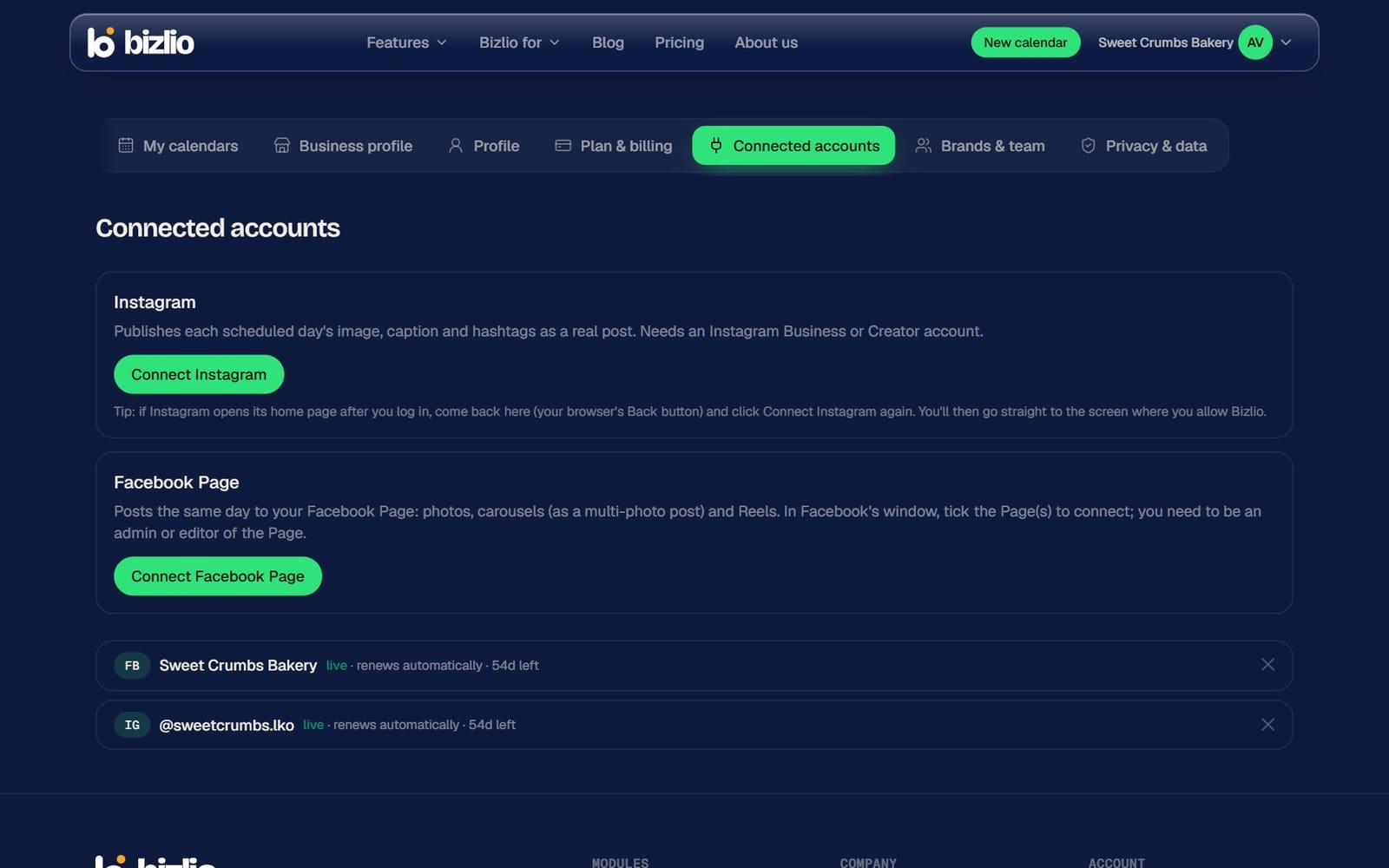
Instagram sometimes opens its own home feed after you log in, instead of the Allow screen. If that happens, press your browser's Back button: Bizlio shows Continue connecting Instagram, which takes you straight to the Allow screen because you're now logged in.
Staying connected
- Your connection renews by itself while you keep using Bizlio. The list shows how many days are left.
- If it ever shows connection expired - reconnect, click Connect Instagram again. Scheduled days keep their schedule.
- To disconnect, click the cross next to the account. Days scheduled to it need another account before they can publish.
You can also remove Bizlio's access from Instagram itself: Settings > Website permissions > Apps and websites.