Content calendar
Schedule & publish
Publish a post now, schedule it for later, or schedule the whole month at once.
Bizlio publishes to your connected Instagram account and, on paid plans, your Facebook Page at the same time. First connect your accounts.
One day
- 1
Open the day
Make sure it has an image, carousel or Reel.
- 2
Choose where
Under Schedule & publish > Publish to, tick Instagram, your Facebook Page, or both.
- 3
Choose when
Pick a date and time (India time) and click Schedule, or click Publish now.
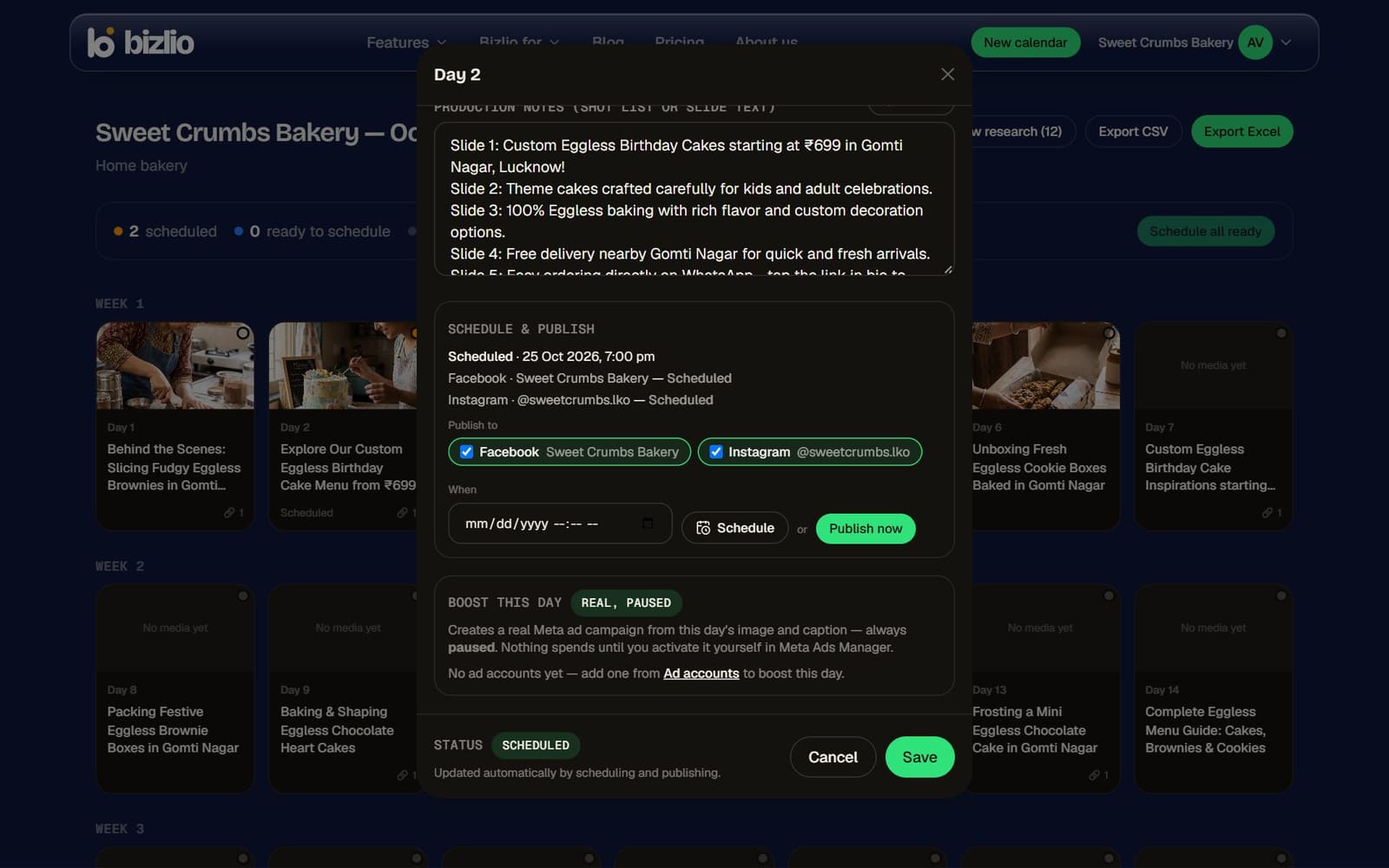
To move a scheduled post, open the day again, pick a new date and time and click Schedule.
The whole month
At the top of a calendar, Schedule all ready schedules every day that has its image or video, each on its own date at the time you choose. You can still move any of them later in its day editor.
Scheduled posts go out around the time you choose, usually within the hour.
If a post fails
- The day shows Failed with the reason Instagram or Facebook gave.
- Common causes: the account was disconnected or its login expired, the image shape or video length isn't allowed, or the caption has too many hashtags (Instagram allows 30).
- Fix the cause and schedule the day again. See Troubleshooting.
On the free plan, your first auto-published post is free and you can move it to another day. Every other day can still be planned, exported and posted by hand.