Website Maker
Orders & payments
Take orders with a cart, Cash on Delivery or UPI, and follow them up on WhatsApp.
On the free plan, every product has an Order on WhatsApp button that opens a chat with you, the product already written in. Paid plans add a cart and checkout.
How customers pay
UPI
Customers pay straight to your UPI ID from any UPI app, with the amount filled in. No fees: the money comes directly to you.
Cash on Delivery
Customers confirm COD orders on WhatsApp before you ship.
Order on WhatsApp
The order is sent to you on WhatsApp and you agree on payment there.
Set up checkout
- 1
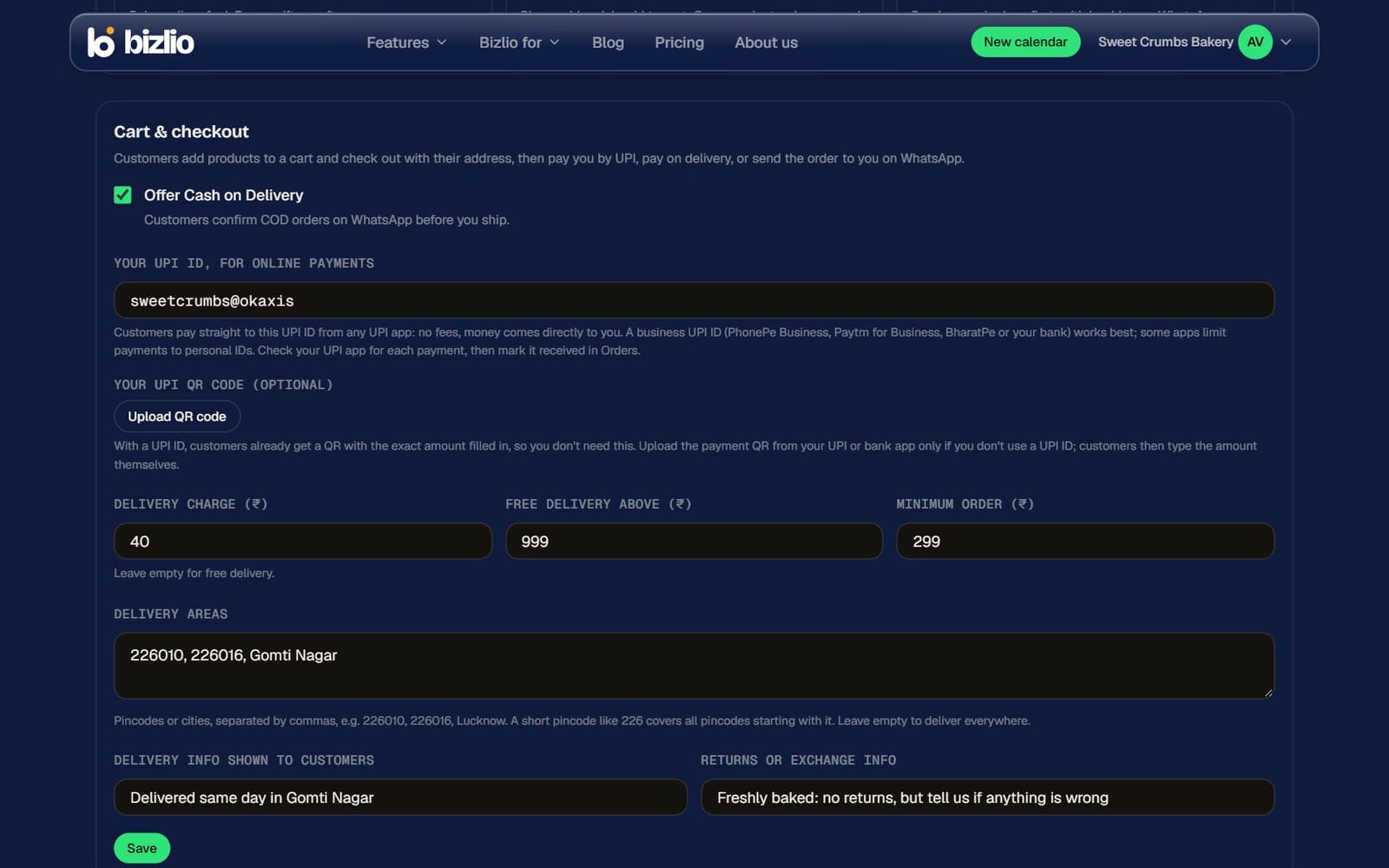
Open Cart & checkout
In Website Maker.
- 2
Choose payment options
Tick Offer Cash on Delivery, and add Your UPI ID (like yourshop@okaxis) for UPI payments.
- 3
Delivery rules
Delivery charge, free delivery above an amount, a minimum order, and the pincodes or cities you deliver to. A short pincode like 226 covers every pincode starting with it.
- 4
Delivery and returns info
Short lines shown to customers, like "Delivered in 2-4 days across Lucknow".
UPI payments
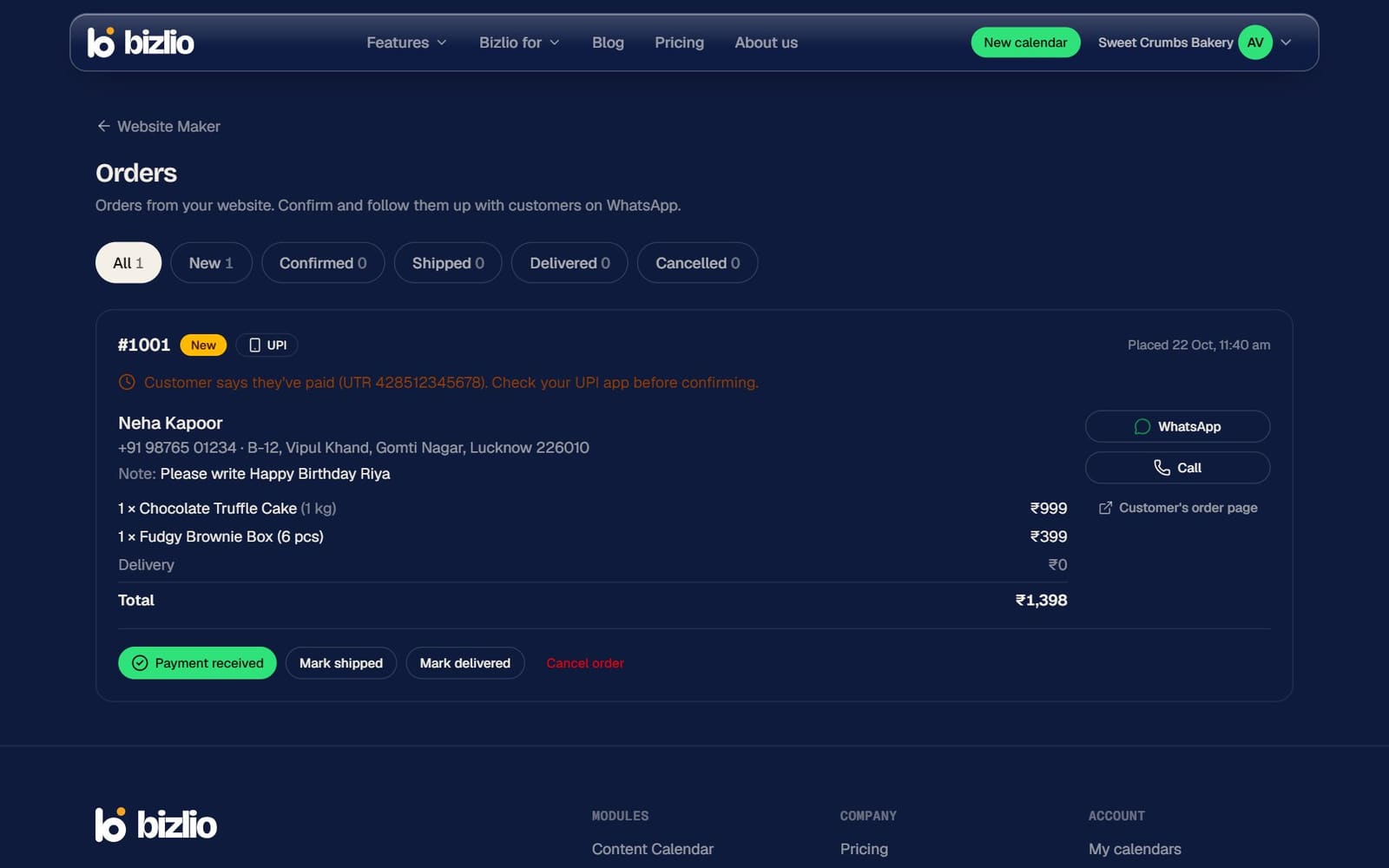
- Customers tap Pay by UPI to open their UPI app with the amount filled in, or scan a QR code made for that exact amount.
- They then tap I've paid, optionally adding their UPI reference number.
- Check your UPI app, then mark the order Payment received in Orders.
- No UPI ID? Upload your shop's UPI QR code instead; customers type the amount themselves.
A business UPI ID (PhonePe Business, Paytm for Business, BharatPe or your bank) works best: some apps limit payments to personal IDs.
Manage orders
Open Orders from Website Maker. Each order shows the items, address and payment, with buttons to chat or call the customer on WhatsApp. Move it along: Confirmed, Shipped, Delivered, or Cancel order (stock goes back).